Showing posts with label Google API. Show all posts
Showing posts with label Google API. Show all posts
Thursday, February 2, 2017

Apps Script Tutorial site
Welcome to the Apps Script Tutorial site. Here you will find lots of Apps script example. I want to make this site content rich for Apps Script learners.
http://www.googleappsscript.org/home
http://www.googleappsscript.org/home
Create Direct Links to your Files on Google Drive
Learn how to create direct links to your files and documents on Google Drive that will download the file instead of opening them in the browser.
https://www.labnol.org/internet/direct-links-for-google-drive/28356/
Wednesday, February 1, 2017
How To Get PHP Scripts Work With Google Sheets API V4

.
How To Get PHP Scripts Work With Google Sheets API V4
1) Read instructions at Google Web Site
Prerequisites
To run this quickstart, you'll need:
- PHP 5.4 or greater with the command-line interface (CLI) and JSON extension installed.
- The Composer dependency management tool.
- Access to the internet and a web browser.
- A Google account.
Step 1: Turn on the Google Sheets API
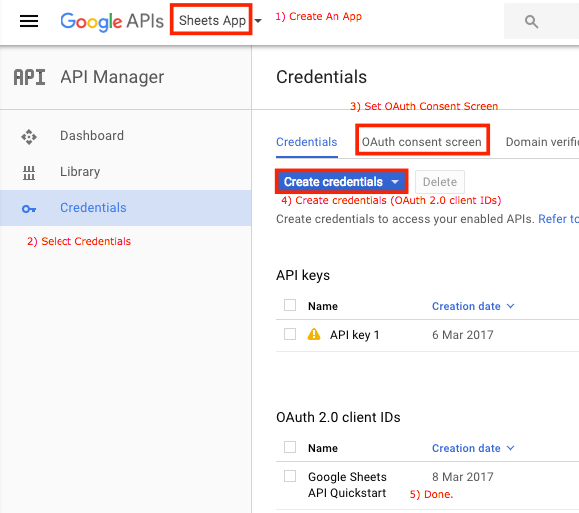
- Use this wizard to create or select a project in the Google Developers Console and automatically turn on the API. Click Continue, then Go to credentials.
- On the Add credentials to your project page, click the Cancel button.
- At the top of the page, select the OAuth consent screen tab. Select an Email address, enter a Product name if not already set, and click the Save button.
- Select the Credentials tab, click the Create credentials button and select OAuth client ID.
- Select the application type Other, enter the name "Google Sheets API Quickstart", and click the Create button.
- Click OK to dismiss the resulting dialog.
- Click the file_download (Download JSON) button to the right of the client ID.
- Move this file to your working directory and rename it client_secret.json.
Step 2: Install the Google Client Library
Run the following command to install the library using composer:
php composer.phar require google/apiclient:^2.0
Step 3: Set up the sample
Create a file named quickstart.php in your working directory and copy in the following code:
<?php
date_default_timezone_set('America/Los_Angeles'); //avoid date config fatal error
require_once __DIR__ . '/vendor/autoload.php';
define('APPLICATION_NAME', 'Google Sheets API PHP Quickstart');
define('CREDENTIALS_PATH', '~/.credentials/sheets.googleapis.com-php-quickstart.json');
define('CLIENT_SECRET_PATH', __DIR__ . '/client_secret.json');
// If modifying these scopes, delete your previously saved credentials
// at ~/.credentials/sheets.googleapis.com-php-quickstart.json
define('SCOPES', implode(' ', array(
Google_Service_Sheets::SPREADSHEETS_READONLY)
));
if (php_sapi_name() != 'cli') {
throw new Exception('This application must be run on the command line.');
}
/**
* Returns an authorized API client.
* @return Google_Client the authorized client object
*/
function getClient() {
$client = new Google_Client();
$client->setApplicationName(APPLICATION_NAME);
$client->setScopes(SCOPES);
$client->setAuthConfig(CLIENT_SECRET_PATH);
$client->setAccessType('offline');
// Load previously authorized credentials from a file.
$credentialsPath = expandHomeDirectory(CREDENTIALS_PATH);
if (file_exists($credentialsPath)) {
$accessToken = json_decode(file_get_contents($credentialsPath), true);
} else {
// Request authorization from the user.
$authUrl = $client->createAuthUrl();
printf("Open the following link in your browser:\n%s\n", $authUrl);
print 'Enter verification code: ';
$authCode = trim(fgets(STDIN));
// Exchange authorization code for an access token.
$accessToken = $client->fetchAccessTokenWithAuthCode($authCode);
// Store the credentials to disk.
if(!file_exists(dirname($credentialsPath))) {
mkdir(dirname($credentialsPath), 0700, true);
}
file_put_contents($credentialsPath, json_encode($accessToken));
printf("Credentials saved to %s\n", $credentialsPath);
}
$client->setAccessToken($accessToken);
// Refresh the token if it's expired.
if ($client->isAccessTokenExpired()) {
$client->fetchAccessTokenWithRefreshToken($client->getRefreshToken());
file_put_contents($credentialsPath, json_encode($client->getAccessToken()));
}
return $client;
}
/**
* Expands the home directory alias '~' to the full path.
* @param string $path the path to expand.
* @return string the expanded path.
*/
function expandHomeDirectory($path) {
$homeDirectory = getenv('HOME');
if (empty($homeDirectory)) {
$homeDirectory = getenv('HOMEDRIVE') . getenv('HOMEPATH');
}
return str_replace('~', realpath($homeDirectory), $path);
}
// Get the API client and construct the service object.
$client = getClient();
$service = new Google_Service_Sheets($client);
// Prints the names and majors of students in a sample spreadsheet:
// https://docs.google.com/spreadsheets/d/1BxiMVs0XRA5nFMdKvBdBZjgmUUqptlbs74OgvE2upms/edit
$spreadsheetId = '1BxiMVs0XRA5nFMdKvBdBZjgmUUqptlbs74OgvE2upms';
$range = 'Class Data!A2:E';
$response = $service->spreadsheets_values->get($spreadsheetId, $range);
$values = $response->getValues();
if (count($values) == 0) {
print "No data found.\n";
} else {
print "Name, Major:\n";
foreach ($values as $row) {
// Print columns A and E, which correspond to indices 0 and 4.
printf("%s, %s\n", $row[0], $row[4]);
}
}
|
Step 4: Run the sample
Run the sample using the following command:
php quickstart.php
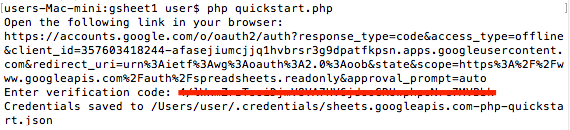
The first time you run the sample, it will prompt you to authorize access:
- Browse to the provided URL in your web browser.
- If you are not already logged into your Google account, you will be prompted to log in. If you are logged into multiple Google accounts, you will be asked to select one account to use for the authorization.
- Click the Accept button.
- Copy the code you're given, paste it into the command-line prompt, and press Enter.
First Time Run:
Remember:
1) Put the JSON File (client_secret.json) into folder that contains your PHP Script (quickstart.php).
2) This script must run as a command line script. Running it in a web browser will trigger exception.
|
Thereafter:

Download:
.
How To Use Google Sheets API

.
Google Sheets API Quick Start
1) Follow Google Sheet API Tutorial
Step 1: Turn on the Google Sheets API
- 1.1. Use this wizard to create or select a project in the Google Developers Console and automatically turn on the API. Click Continue, then Go to credentials.
- 1.2. On the Add credentials to your project page, click the Cancel button.
- 1.3. At the top of the page, select the OAuth consent screen tab. Select an Email address, enter a Product name if not already set, and click the Save button.
- 1.4. Select the Credentials tab, click the Create credentials button and select OAuth client ID.
- 1.5. Select the application type Web application.
- 1.6. In the Authorized JavaScript origins field, enter the URL http://localhost:8000. You can leave the Authorized redirect URIs field blank.
- 1.7. Click the Create button.
- 1.8. Take note of the client ID in the resulting dialog. You will need it in a later step.
- 1.9. Click OK to dismiss the resulting dialog.
Step 2: Set up the sample
Create a file named quickstart.html and copy in the following code:
<!DOCTYPE html>
<html> <head> <title>Google Sheets API Quickstart</title> <meta charset='utf-8' /> </head> <body> <p>Google Sheets API Quickstart</p> <!--Add buttons to initiate auth sequence and sign out--> <button id="authorize-button" style="display: none;">Authorize</button> <button id="signout-button" style="display: none;">Sign Out</button> <pre id="content"></pre> <script type="text/javascript"> // Client ID and API key from the Developer Console var CLIENT_ID = '<YOUR_CLIENT_ID>'; // Array of API discovery doc URLs for APIs used by the quickstart var DISCOVERY_DOCS = ["https://sheets.googleapis.com/$discovery/rest?version=v4"]; // Authorization scopes required by the API; multiple scopes can be // included, separated by spaces. var SCOPES = "https://www.googleapis.com/auth/spreadsheets.readonly"; var authorizeButton = document.getElementById('authorize-button'); var signoutButton = document.getElementById('signout-button'); /** * On load, called to load the auth2 library and API client library. */ function handleClientLoad() { gapi.load('client:auth2', initClient); } /** * Initializes the API client library and sets up sign-in state * listeners. */ function initClient() { gapi.client.init({ discoveryDocs: DISCOVERY_DOCS, clientId: CLIENT_ID, scope: SCOPES }).then(function () { // Listen for sign-in state changes. gapi.auth2.getAuthInstance().isSignedIn.listen(updateSigninStatus); // Handle the initial sign-in state. updateSigninStatus(gapi.auth2.getAuthInstance().isSignedIn.get()); authorizeButton.onclick = handleAuthClick; signoutButton.onclick = handleSignoutClick; }); } /** * Called when the signed in status changes, to update the UI * appropriately. After a sign-in, the API is called. */ function updateSigninStatus(isSignedIn) { if (isSignedIn) { authorizeButton.style.display = 'none'; signoutButton.style.display = 'block'; listMajors(); } else { authorizeButton.style.display = 'block'; signoutButton.style.display = 'none'; } } /** * Sign in the user upon button click. */ function handleAuthClick(event) { gapi.auth2.getAuthInstance().signIn(); } /** * Sign out the user upon button click. */ function handleSignoutClick(event) { gapi.auth2.getAuthInstance().signOut(); } /** * Append a pre element to the body containing the given message * as its text node. Used to display the results of the API call. * * @param {string} message Text to be placed in pre element. */ function appendPre(message) { var pre = document.getElementById('content'); var textContent = document.createTextNode(message + '\n'); pre.appendChild(textContent); } /** * Print the names and majors of students in a sample spreadsheet: * https://docs.google.com/spreadsheets/d/1BxiMVs0XRA5nFMdKvBdBZjgmUUqptlbs74OgvE2upms/edit */ function listMajors() { gapi.client.sheets.spreadsheets.values.get({ spreadsheetId: '1BxiMVs0XRA5nFMdKvBdBZjgmUUqptlbs74OgvE2upms', range: 'Class Data!A2:E', }).then(function(response) { var range = response.result; if (range.values.length > 0) { appendPre('Name, Major:'); for (i = 0; i < range.values.length; i++) { var row = range.values[i]; // Print columns A and E, which correspond to indices 0 and 4. appendPre(row[0] + ', ' + row[4]); } } else { appendPre('No data found.'); } }, function(response) { appendPre('Error: ' + response.result.error.message); }); } </script> <script async defer src="https://apis.google.com/js/api.js" onload="this.onload=function(){};handleClientLoad()" onreadystatechange="if (this.readyState === 'complete') this.onload()"> </script> </body> </html> |
Replace the placeholder <YOUR_CLIENT_ID> in the copied code with the client ID you created in Step 1.
Step 3: Run the sample
We are going to use GitHub hosting. Save the quickstart.html file above to GitHub server as follows.

To create a folder via GitHub web page, type the folder name followed by “/”.
E.g. to create demo folder, type “demo/”
|
Replace the server URI in STEP 1.6 above as follows:
Replace http://localhost:8000 with http://notarazi.github.io.
Wait for the Google Server to update itself. In my case, I waited for 10 minutes. Then my web browser displays the following.
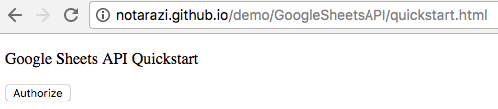
Click Authorize.
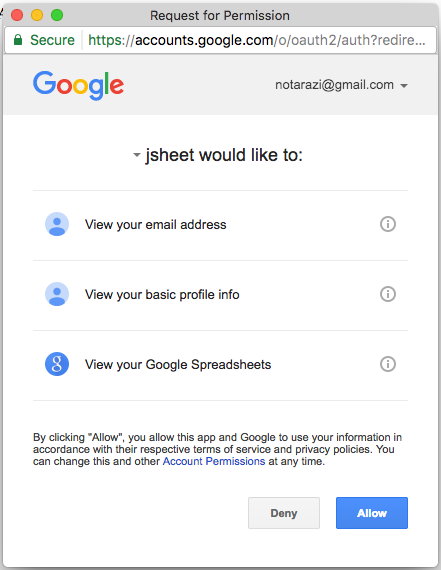
Click Allow.
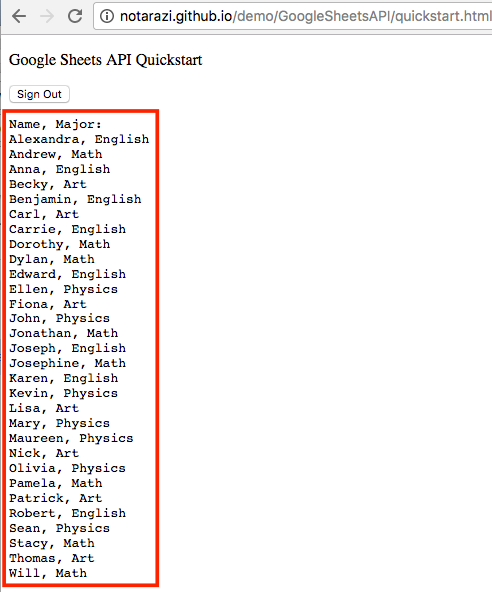
3) GitHub
Run: http://notarazi.github.io/demo/GoogleSheetsAPI/quickstart.htmlSource: https://github.com/notarazi/notarazi.github.io/blob/master/demo/GoogleSheetsAPI/quickstart.html
.
Subscribe to:
Posts (Atom)