Labels

ionic (40) Google Apps Script (28) Construct2 (6) Google API (5) Google Cloud (5) Java (5) presentation (5) jasper (4) plunker (4) Notepad++ (2) liferay (2) ms access (2) mysql (2) PHP (1) SQLite (1) android (1) blogspot (1) html5 (1) ionic-creator (1) javascript (1) mobile (1) plainjs (1) utilties (1)

Learn the powerful enterprise adaptable database:

Getting Started With ADABAS & Natural

Showing posts with label liferay. Show all posts

Thursday, January 17, 2013

Liferay: Manage Page Layout

1) Log into your Liferay Portal.

2) Click Go to/My Public Pages.

3) Click Manage/Page Layout.


4) The Manage Page Layout Dialog Window pops up.
4a) The following screenshots shows the existing layout (2 columns).


4b) The layout selected in (4a) defines how the three components (portlets) namely Language, Blogs and Search will be arranged within the area marked as red rectangle in the following screenshot.


5) Change the layout to 1-2 Columns


6) Save.


7) After receiving Success response, close the Dialog Window.


8) Liferay Page has changed its layout.

9) You can move a portlet from one layout segment to another. For example, if you want to move the Search Portlet:
9a) Hover your mouse over the following area marked in red rectangle.

9b) Keep moving until the mouse cursor change to the following shape:


10) Move the Search Portlet to the bottom of Blog Portlet.


11) Next, we will set the page back to its original layout:
11a) Go to Manage/Page Layout.
11b) Select the previous layout (2-Column)
11c) Save.
11d) Go back to the Front Page.
11e) Rearrange the portlets to position them according to their previous arrangements.

Liferay: Multi Language Page

1) Log into your Liferay Portal. Click Goto/My Public Pages.


2) Your Public Page is displayed.Click Manage/Page.


3) Manage Page Dialog Window is displayed.

4) Refer to the Details Section. The Default Language used is US.


5) Notice that there is a Down Arrow besides "Other Languages" label. Click the arrow. Select Indonesian Language. Notice the Indonesian Flag Icon pops up when the language is selected. Type "Selamat Datang".


6) Language entry is done. Click the area marked as X on the following screenshot.


7) Click Save.


8) The system will respond "Your request completed Successfully. ...". Close the window.

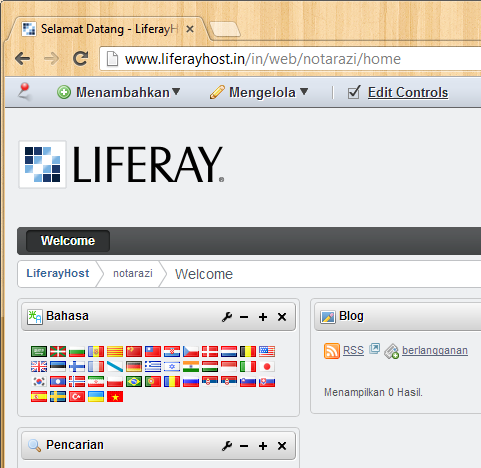
9) When you are back to the Front Page. Locate the Language Portlet. Click the Indonesian Flag.

10) Notice that the entire page is now is displayed in Indonesian Language. This is the effect of clicking the language icon in Step 9.

11) Notice that the Webpage Title displays "Selamat Datang". This is the effect of Step 2 to Step 7.