Labels

Learn the powerful enterprise adaptable database:

Getting Started With ADABAS & Natural

Friday, February 3, 2017

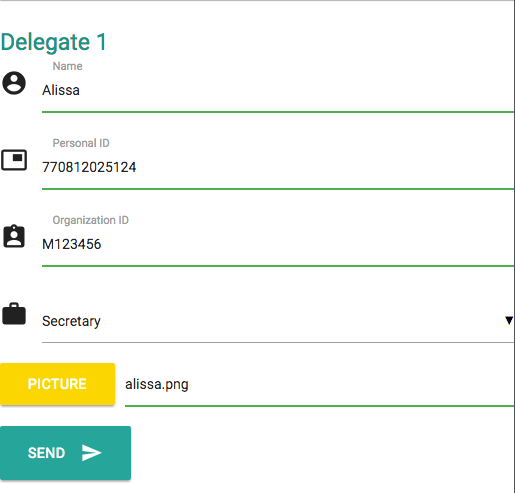
HTML5 Form Auto Generate Multiple Name Entries


.

HTML5 Form Auto Generate Multiple Name Entries

HTML
<!-- minified via http://minifycode.com/html-minifier/-->
<head><base target='_blank'><meta name='viewport' content='width=device-width, initial-scale=1.0' /><title>Registration</title><link href='https://fonts.googleapis.com/icon?family=Material+Icons' rel='stylesheet'><link rel='stylesheet' href='https://cdnjs.cloudflare.com/ajax/libs/materialize/0.98.0/css/materialize.min.css'></head><body>
  <!--Begin Form Section -->
  <form id="FormPerson">
  </form>
  <!--End Form Section -->
  <script type='text/javascript' src='https://code.jquery.com/jquery-2.1.1.min.js'></script> <script src='https://cdnjs.cloudflare.com/ajax/libs/materialize/0.98.0/js/materialize.min.js'></script> </body>
JS
(Use http://minifycode.com/ to minify or beautify the codes)
Change the number if you want to allow more names in the form.
$(document).ready(function () {
        var labelPerson = "Delegate";
        var htmlFormSection = "<div id='FormSection{Person}'><h5 class='left-align teal-text' style='padding-top:20px;'> <span id='Label{Person}'>{labelPerson}</span></h5><div class='input-field col s12'> <i class='material-icons prefix'>account_circle</i> <input id='{Person}_Name' type='text' name='{Person}_Name' class='validate' required='' aria-required='true'> <label for='{Person}_Name'>Name</label></div><div class='input-field col s12'> <i class='material-icons prefix'>picture_in_picture</i> <input id='{Person}_Pid' type='text' name='{Person}_Pid' class='validate' required='' aria-required='true'> <label for='{Person}_Pid'>Personal ID</label></div><div class='input-field col s12'> <i class='material-icons prefix'>assignment_ind</i> <input id='{Person}_Oid' type='text' name='{Person}_Oid' class='validate' required='' aria-required='true'> <label for='{Person}_Oid'>Organization ID</label></div><div class='input-field col s12'> <i class='material-icons prefix'>work</i> <select id='{Person}_Position' name='{Person}_Position'><option value='' disabled selected>Position</option><option value='Head'>Head</option><option value='Vice'>Vice</option><option value='Deputy'>Deputy</option><option value='Secretary'>Secretary</option><option value='Others'>Others</option> </select></div><div class='file-field input-field col s12'><div class='btn yellow accent-4'> <span>Picture</span> <input id='{Person}_File' name='{Person}_File' type='file'></div><div class='file-path-wrapper'> <input class='file-path validate' type='text' placeholder='Select Picture'></div></div></div>";
        var totalPerson = 1;
        for (i = 1; i < totalPerson + 1; i++) { /*create a unique label*/
                var newLabelPerson = labelPerson.concat(" ", i); /*create unique id */
                var newIdPerson = "Person" + i; /*replace id placeholders */
                var regex = new RegExp('{Person}', 'g');
                var newHtmlFormSection = htmlFormSection;
                newHtmlFormSection = newHtmlFormSection.replace('{labelPerson}', newLabelPerson);
                newHtmlFormSection = newHtmlFormSection.replace(regex, newIdPerson);
                $('#FormPerson').append(newHtmlFormSection);
        }
        $('#FormPerson').append("<div class='btn btn-large waves-effect waves-light' id ='send' name='send'>Send<i class='material-icons right'>send</i></div>");
        $('select').material_select();
        $("#send").click(function (event) {
                var $inputs = $('#FormPerson').find("input, select");
                if (isEmpty($inputs)) {
                        alert("Please fill all the fields.")
                } else {
                        alert("Sending now...")
                }
        });
});
function isEmpty($inputs) {
        var check = false;
        $.each($inputs, function (key, item) {
                if (item.value == "") {
                        check = true
                }
        });
        return check;
}
CODEPEN:
Demo:

See the Pen HTML Form Section (Material Design) by notarazi (@notarazi) on CodePen.

.

HTML5 Upload Form App Script Google Sheet


.
HTML5 Upload Form App Script Google Sheet

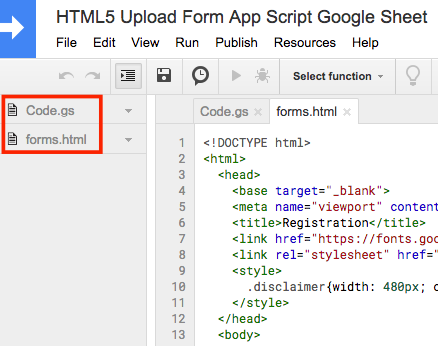
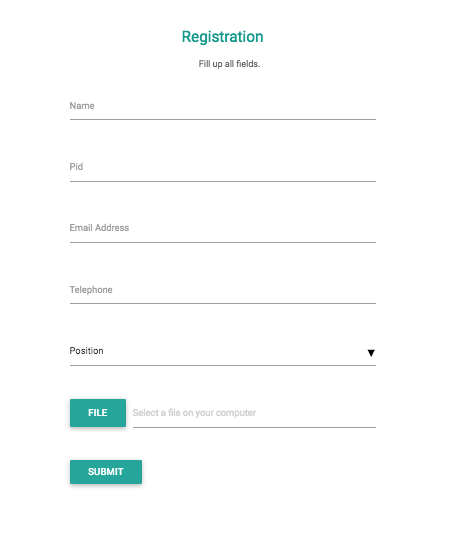
1) Create html form and javascript codes in Code Editor

forms.html

<!DOCTYPE html>
<html>
 <head>
   <base target="_blank">
   <meta name="viewport" content="width=device-width, initial-scale=1.0" />
   <title>Registration</title>
   <link href="https://fonts.googleapis.com/icon?family=Material+Icons" rel="stylesheet">
   <link rel="stylesheet" href="https://cdnjs.cloudflare.com/ajax/libs/materialize/0.97.5/css/materialize.min.css">
   <style>
     .disclaimer{width: 480px; color:#646464;margin:20px auto;padding:0 16px;text-align:center;font:400 12px Roboto,Helvetica,Arial,sans-serif}.disclaimer a{color:#009688}#credit{display:none}
   </style>
 </head>
 <body>

   <form class="main" id="form" novalidate="novalidate" style="max-width: 480px;margin: 40px auto;">
     <div id="forminner">
       <div class="row">
         <div class="col s12">
           <h5 class="center-align teal-text">Registration</h5>
           <p class="disclaimer">Fill up all fields.</p>
         </div>
       </div>
       <div class="row">
         <div class="input-field col s12">
           <input id="name" type="text" name="Name" class="validate" required="" aria-required="true">
           <label for="name">Name</label>
         </div>
       </div>
       <div class="row">
         <div class="input-field col s12">
           <input id="pid" type="text" name="Pid" class="validate" required="" aria-required="true">
           <label for="pid">Pid</label>
         </div>
       </div>      
       <div class="row">
         <div class="input-field col s12">
           <input id="email" type="email" name="Email" class="validate" required="" aria-required="true">
           <label for="email">Email Address</label>
         </div>
       </div>
       <div class="row">
         <div class="input-field col s12">
           <input id="tel" type="tel" name="Tel" class="validate" required="" aria-required="true">
           <label for="tel">Telephone</label>
         </div>
       </div>
       <div class="row">
       <div class="input-field col s12">
       <select id="position" name="position">
           <option value="" disabled selected>Position</option>
           <option value="Head">Head</option>
           <option value="Assistant">Assistant</option>
           <option value="Secretary">Secretary</option>
           <option value="Others">Others</option>
       </select>
       </div>
       </div>

       <div class="row">
         <div class="file-field input-field col s12">
           <div class="btn">
             <span>File</span>
             <input id="files" type="file">
           </div>
           <div class="file-path-wrapper">
             <input class="file-path validate" type="text" placeholder="Select a file on your computer">
           </div>
         </div>
       </div>

       <div class="row">
         <div class="input-field col s6">
           <button class="waves-effect waves-light btn submit-btn" type="submit" onclick="submitForm(); return false;">Submit</button>
         </div>
       </div>
       <div class="row">
         <div class="input-field col s12" id = "progress">
         </div>
       </div>
     </div>
     <div id="success" style="display:none">
       <h5 class="left-align teal-text">File Uploaded</h5>
       <p>Your file has been successfully uploaded.</p>
       <p class="center-align"><a  class="btn btn-large" onclick="restartForm()" >Restart</a></p>
     </div>
   </form>


   <script src="https://cdnjs.cloudflare.com/ajax/libs/jquery/2.2.0/jquery.min.js"></script>
   <script src="https://cdnjs.cloudflare.com/ajax/libs/materialize/0.97.5/js/materialize.min.js"></script>


   <script>

     var file, reader = new FileReader();

     reader.onloadend = function(e) {
       if (e.target.error != null) {
         showError("File " + file.name + " could not be read.");
         return;
       } else {
         google.script.run
           .withSuccessHandler(showSuccess)
           .uploadFileToGoogleDrive(e.target.result, file.name, $('input#name').val(),
                   $('input#pid').val(), $('input#email').val(), $('input#tel').val()),
                   $('input#position').val();
       }
     };

     function showSuccess(e) {
       if (e === "OK") {
         $('#forminner').hide();
         $('#success').show();
       } else {
         showError(e);
       }
     }

     function restartForm() {
     $('#form').trigger("reset");
         $('#forminner').show();
         $('#success').hide();
         $('#progress').html("");
       }

     function submitForm() {

       var files = $('#files')[0].files;

       if (files.length === 0) {
         showError("Please select a file to upload");
         return;
       }

       file = files[0];

       if (file.size > 1024 * 1024 * 5) {
         showError("The file size should be < 5 MB. ");
         return;
       }

       showMessage("Uploading file..");

       reader.readAsDataURL(file);

     }

     function showError(e) {
       $('#progress').addClass('red-text').html(e);
     }

     function showMessage(e) {
       $('#progress').removeClass('red-text').html(e);
     }

       $(document).ready(function() {
                                   $('select').material_select();
                         });

   </script>

 </body>

</html>
Code.gs

//  1. Enter sheet name where data is to be written below
        var SHEET_NAME = "Sheet1";
//  2. Run > setup
//
//  3. Publish > Deploy as web app
//    - enter Project Version name and click 'Save New Version'
//    - set security level and enable service (most likely execute as 'me' and access 'anyone, even anonymously)
//
//  4. Copy the 'Current web app URL' and post this in your form/script action
//
//  5. Insert column names on your destination sheet matching the parameter names of the data you are passing in (exactly matching case)
var SCRIPT_PROP = PropertiesService.getScriptProperties(); // new property service
function doGet(e) {
  return HtmlService.createHtmlOutputFromFile('forms.html').setTitle("Registration With Document");
}
function uploadFileToGoogleDrive(data, file, name, pid, email, tel, position) {

  try {
   
    var dropbox = "Received Files";
    //var folder, folders = DriveApp.getFoldersByName(dropbox);
    var folder=DriveApp.getFolderById('0B86b-ALn-1MGSndHQ2NQMlExNVE');
    /*
    if (folders.hasNext()) {
      folder = folders.next();
    } else {
      folder = DriveApp.createFolder(dropbox);
    }
    */
    /* Credit: www.labnol.org/awesome */
   
    var contentType = data.substring(5,data.indexOf(';')),
        bytes = Utilities.base64Decode(data.substr(data.indexOf('base64,')+7)),
        blob = Utilities.newBlob(bytes, contentType, file),
        file = folder.createFolder([name, email].join(" ")).createFile(blob),
        filelink=file.getUrl() ;
  var lock = LockService.getPublicLock();
  lock.waitLock(30000);  // wait 30 seconds before conceding defeat.    
   
    // next set where we write the data - you could write to multiple/alternate destinations
    var doc = SpreadsheetApp.openById(SCRIPT_PROP.getProperty("key"));
    var sheet = doc.getSheetByName(SHEET_NAME);
    // we'll assume header is in row 1 but you can override with header_row in GET/POST data
    var headRow =  1;
    var headers = sheet.getRange(1, 1, 1, sheet.getLastColumn()).getValues()[0];
    var nextRow = sheet.getLastRow()+1; // get next row
    var row = [];
    // loop through the header columns
    for (i in headers){
      if (headers[i] == "Timestamp"){ // special case if you include a 'Timestamp' column
        row.push(new Date());
      } else if (headers[i] == "name"){
        row.push(name);
      } else if (headers[i] == "pid"){
        row.push(pid);
      } else if (headers[i] == "email"){
        row.push(email);
      } else if (headers[i] == "tel"){
        row.push(tel);
      } else if (headers[i] == "position"){
        row.push(position);
      } else if (headers[i] == "filelink"){
        row.push(filelink);
      }
       
    }
    // more efficient to set values as [][] array than individually
    sheet.getRange(nextRow, 1, 1, row.length).setValues([row]);
   
    // return json success results
    //return ContentService
    //      .createTextOutput(JSON.stringify({"result":"success", "row": nextRow}))
    //      .setMimeType(ContentService.MimeType.JSON);    
   
   
    return "OK";
   
  } catch (f) {
    return f.toString();
  } finally { //release lock
    lock.releaseLock();
  }

}
function setup() {
    var doc = SpreadsheetApp.getActiveSpreadsheet();
    SCRIPT_PROP.setProperty("key", doc.getId());
}
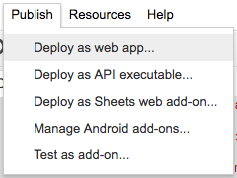
Select menu Publish/Deploy as web app...
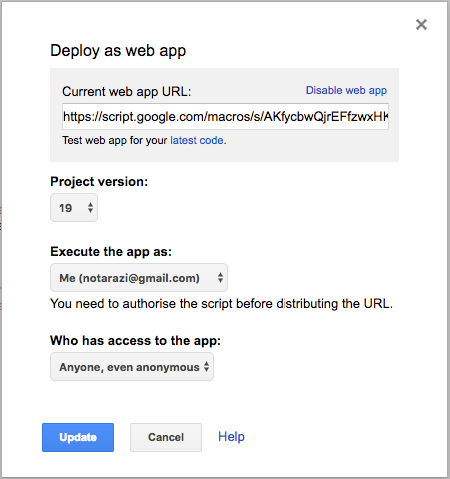
Get the script URL.

.

HTML5 Form App Script Google Sheet


.
Google Apps Script and Custom Form For Google Sheet

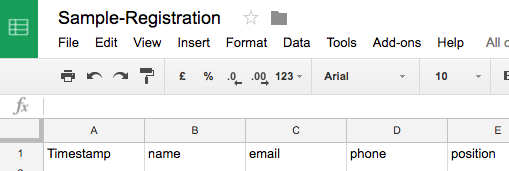
1) Create a new Google Sheet

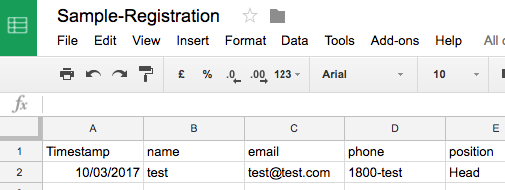
Create columns as shown below:
Timestamp
name
email
phone
position
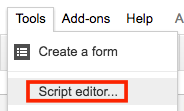
Select Menu/Script editor...
A Script Editor window will be opened in a new browser tab. By default a code file Code.gs is created.
Paste the following code.
//  1. Enter sheet name where data is to be written below
        var SHEET_NAME = "Sheet1";
//  2. Run > setup
//
//  3. Publish > Deploy as web app
//    - enter Project Version name and click 'Save New Version'
//    - set security level and enable service (most likely execute as 'me' and access 'anyone, even anonymously)
//
//  4. Copy the 'Current web app URL' and post this in your form/script action
//
//  5. Insert column names on your destination sheet matching the parameter names of the data you are passing in (exactly matching case)
var SCRIPT_PROP = PropertiesService.getScriptProperties(); // new property service
// If you don't want to expose either GET or POST methods you can comment out the appropriate function
function doGet(e){
  return handleResponse(e);
}
function doPost(e){
  return handleResponse(e);
}
function handleResponse(e) {
  // shortly after my original solution Google announced the LockService[1]
  // this prevents concurrent access overwritting data
  // [1] http://googleappsdeveloper.blogspot.co.uk/2011/10/concurrency-and-google-apps-script.html
  // we want a public lock, one that locks for all invocations
  var lock = LockService.getPublicLock();
  lock.waitLock(30000);  // wait 30 seconds before conceding defeat.
  try {
    // next set where we write the data - you could write to multiple/alternate destinations
    var doc = SpreadsheetApp.openById(SCRIPT_PROP.getProperty("key"));
    var sheet = doc.getSheetByName(SHEET_NAME);
    // we'll assume header is in row 1 but you can override with header_row in GET/POST data
    var headRow = e.parameter.header_row || 1;
    var headers = sheet.getRange(1, 1, 1, sheet.getLastColumn()).getValues()[0];
    var nextRow = sheet.getLastRow()+1; // get next row
    var row = [];
    // loop through the header columns
    for (i in headers){
      if (headers[i] == "Timestamp"){ // special case if you include a 'Timestamp' column
        row.push(new Date());
      } else { // else use header name to get data
        row.push(e.parameter[headers[i]]);
      }
    }
    // more efficient to set values as [][] array than individually
    sheet.getRange(nextRow, 1, 1, row.length).setValues([row]);
    // return json success results
    return ContentService
          .createTextOutput(JSON.stringify({"result":"success", "row": nextRow}))
          .setMimeType(ContentService.MimeType.JSON);
  } catch(e){
    // if error return this
    return ContentService
          .createTextOutput(JSON.stringify({"result":"error", "error": e}))
          .setMimeType(ContentService.MimeType.JSON);
  } finally { //release lock
    lock.releaseLock();
  }
}
function setup() {
    var doc = SpreadsheetApp.getActiveSpreadsheet();
    SCRIPT_PROP.setProperty("key", doc.getId());
}
Save.

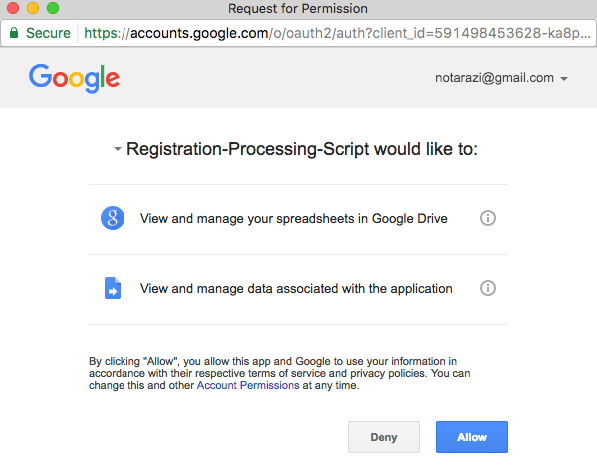
2) Run Setup

Before deploying the script, we need to run the setup function to register the worksheet id.
To check that the setup process is successful, select menu File/Project Properties.
The Script Properties tab should display the key value.
Then, deploy as web app.
Execute the apps as: me.
Who has the access to apps: anyone, even anonymous.
Take note of the web app URL.
Paste the web app URL to the string <YOUR WEB APP URL> in the JS codes below.

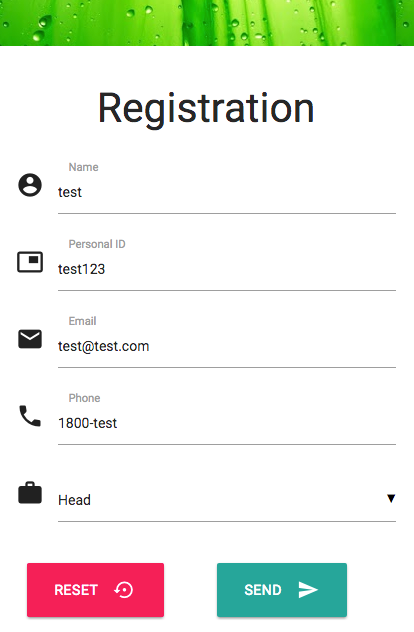
3) Create a new CodePen

HTML
  <head>
<!--Import Google Icon Font-->
<link href="http://fonts.googleapis.com/icon?family=Material+Icons" rel="stylesheet">
<!-- Compiled and minified CSS -->
<link rel="stylesheet" href="https://cdnjs.cloudflare.com/ajax/libs/materialize/0.98.0/css/materialize.min.css">
<!--Let browser know website is optimized for mobile-->
<meta name="viewport" content="width=device-width, initial-scale=1.0"/>
    </head>
    <body>
<div class="waves-light" style="height:50px;background-image: url(https://lh5.googleusercontent.com/NplHsFMjyO6ML5EvR9xHtFi-nxa61W58LE1uaPB_c_VnTtnspJnCOzr9uuHcbTdn_ZNGWW8dJA=w400);
    /* background-size: cover; */
    /* background-position: center; */
    color: rgba(255, 255, 255, 1);"></div>
  <div style="padding:20px;max-width:420px;margin:auto;">
    <h3 style="text-align:center;">Registration</h3>
    <div style="height:10px;"></div>
    <form id="register" class="col s12">
    <div class="input-field col s12">
        <i class="material-icons prefix">account_circle</i>
        <input id="name" name="name" type="text" required>
        <label for="name">Name</label>
    </div>
    <div class="input-field col s12">
        <i class="material-icons prefix">picture_in_picture</i>
        <input id="pidno" name="pidno" type="text" required>
        <label for="pidno">Personal ID</label>
    </div>
    <div class="input-field col s12">
        <i class="material-icons prefix">email</i>
        <input id="email" name="email" type="email" required>
        <label for="email">Email</label>
    </div>
    <div class="input-field col s12">
        <i class="material-icons prefix">phone</i>
        <input id="phone" name="phone" type="tel" required>
        <label for="phone">Phone</label>
    </div>
    <div class="input-field col s12">
        <i class="material-icons prefix">work</i>
        <select id="position" name="position">
            <option value="" disabled selected>Position</option>
            <option value="Head">Head</option>
            <option value="Assistant">Assistant</option>
            <option value="Secretary">Secretary</option>
            <option value="Others">Others</option>
        </select>
    </div>
  <!-- Future extension
    <div class="file-field input-field">
        <div class="btn yellow accent-4">
            <span>Reference Document</span>
            <input type="file">
        </div>
        <div class="file-path-wrapper">
            <input class="file-path validate" type="text">
        </div>
      </div>
  -->
        <br/>
        <div class="row">
            <div class="col s6">
                <button class="btn btn-large waves-effect pink accent-3" type="reset" >Reset
                    <i class="material-icons right">settings_backup_restore</i>
                </button>
            </div>
            <div class="col s6">
                <button class="btn btn-large waves-effect waves-light" id ="send" type="submit" name="send">Send
                    <i class="material-icons right">send</i>
                </button>
            </div>
        </div>
    </div>
</form>
      </div>
     
       
      <!--Import jQuery before materialize.js-->
      <script type="text/javascript" src="https://code.jquery.com/jquery-2.1.1.min.js"></script>
      <script src="https://cdnjs.cloudflare.com/ajax/libs/materialize/0.98.0/js/materialize.min.js"></script>
      <script>
        $(document).ready(function() {
                                    $('select').material_select();
                          });
      </script>
    </body>
JS
// Variable to hold request
var request;
// Bind to the submit event of our form
$("#register").submit(function(event){
    // Abort any pending request
    if (request) {
        request.abort();
    }
    // setup some local variables
    var $form = $(this);
    // Let's select and cache all the fields
    var $inputs = $form.find("input, select, button, textarea");
    // Serialize the data in the form
    var serializedData = $form.serialize();
    // Let's disable the inputs for the duration of the Ajax request.
    // Note: we disable elements AFTER the form data has been serialized.
    // Disabled form elements will not be serialized.
    $inputs.prop("disabled", true);
    // Fire off the request to /form.php
    request = $.ajax({
        url: "<YOUR WEB APP URL>",
        type: "post",
        data: serializedData
    });
    // Callback handler that will be called on success
    request.done(function (response, textStatus, jqXHR){
        // Log a message to the console
        console.log("Hooray, it worked!");
        console.log(response);
        console.log(textStatus);
        console.log(jqXHR);
      $("#register")[0].reset();
    });
    // Callback handler that will be called on failure
    request.fail(function (jqXHR, textStatus, errorThrown){
        // Log the error to the console
        console.error(
            "The following error occurred: "+
            textStatus, errorThrown
        );
    });
    // Callback handler that will be called regardless
    // if the request failed or succeeded
    request.always(function () {
        // Reenable the inputs
        $inputs.prop("disabled", false);
         
    });
    // Prevent default posting of form
    event.preventDefault();
});
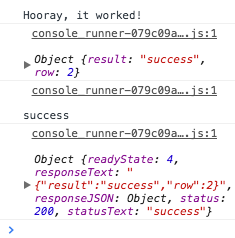
Test Run.
The console window should display success message.
The Google Sheet should contain the new record.


HTML5 Form With App Script Google Sheet: http://codepen.io/notarazi/pen/WppKGe 
.